

Shopify Integration Guide
Turn Your Shopify Store Into a 24/7 AI-Powered Sales Machine
Rahel Gunaratne
October 2025
Why Your Shopify Store Needs an AI Chatbot
Imagine a customer browsing your Shopify store at 2 AM, looking for the perfect product. Instead of navigating through endless pages, they simply ask your AI chatbot: "What's your most popular waterproof jacket?" Instantly, your chatbot recommends products, provides links, and even answers follow-up questions about sizing and shipping.
This isn't science fiction - it's what happens when you connect Web Indexer to your Shopify store. Your chatbot becomes an intelligent product expert, working 24/7 to turn browsers into buyers.
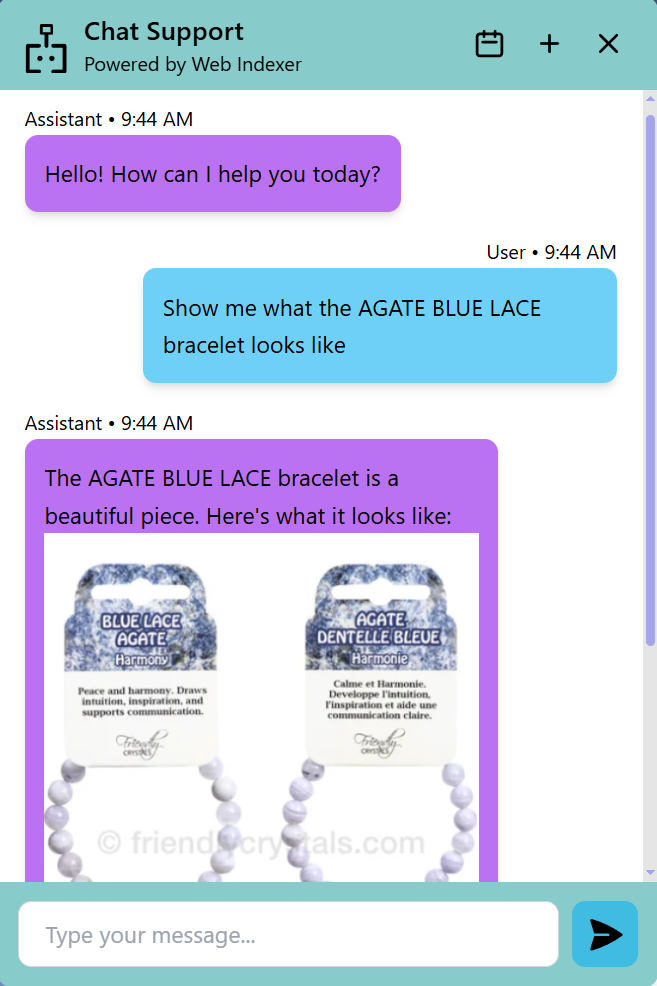
Your chatbot recommending products with clickable links - no more searching required
What You'll Accomplish in This Guide
Time to complete: 15-20 minutes
Technical level: Beginner-friendly (no coding required!)
Getting Your Storefront API Access Token
First, we need to create a connection between your Shopify store and Web Indexer. This is done through something called a "Storefront API Access Token" - think of it as a secure key that lets your chatbot access your product information. Don't worry, it sounds technical but it's actually quite simple!
🔐What is a Storefront API Access Token?
This is a secure credential that allows Web Indexer to read your public product data (titles, descriptions, prices, images) without accessing any sensitive store information. It's read-only and completely safe!
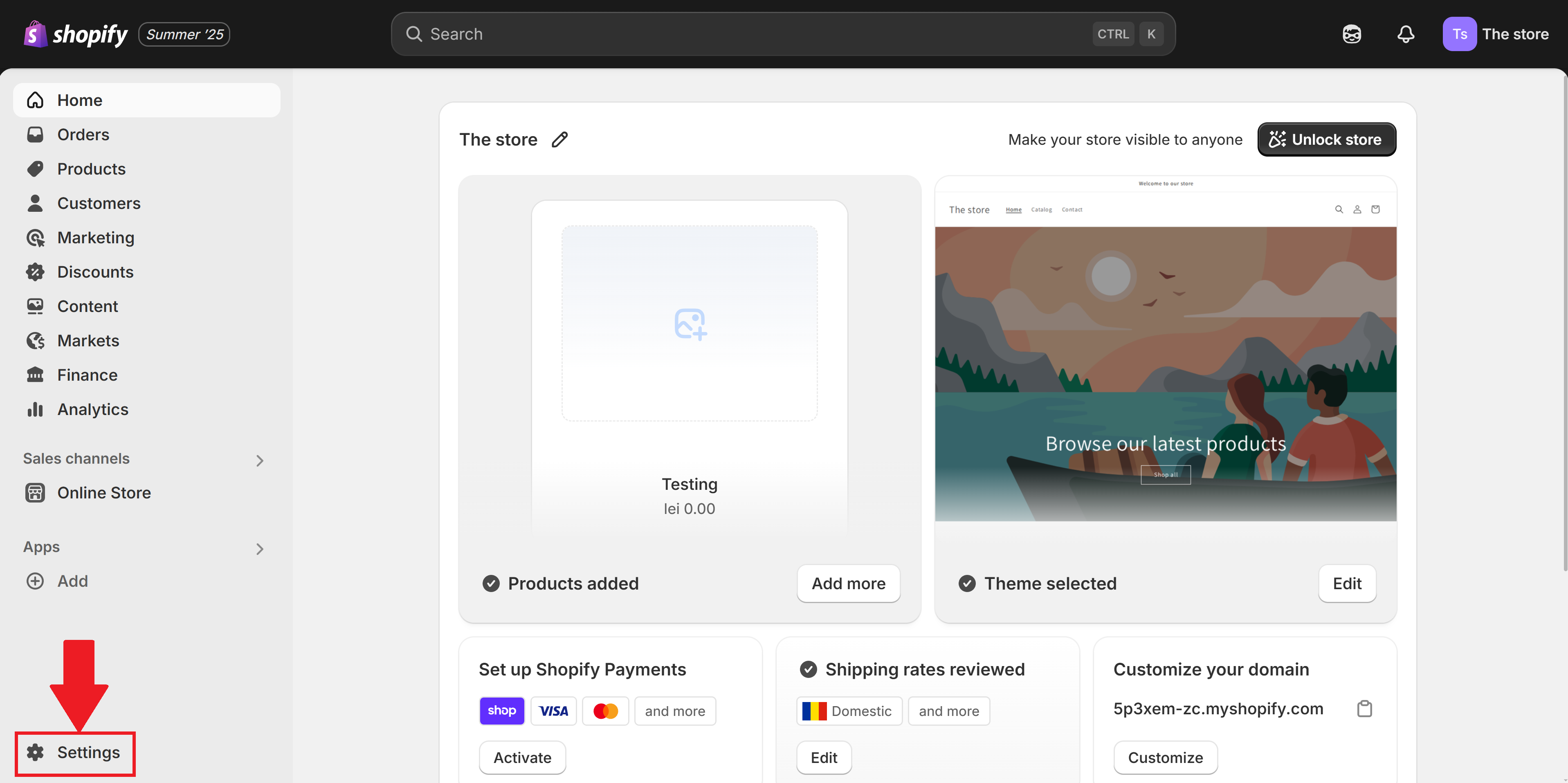
Step 1: Access Your Shopify Settings
Log into your Shopify admin panel and click on Settings in the bottom left corner.
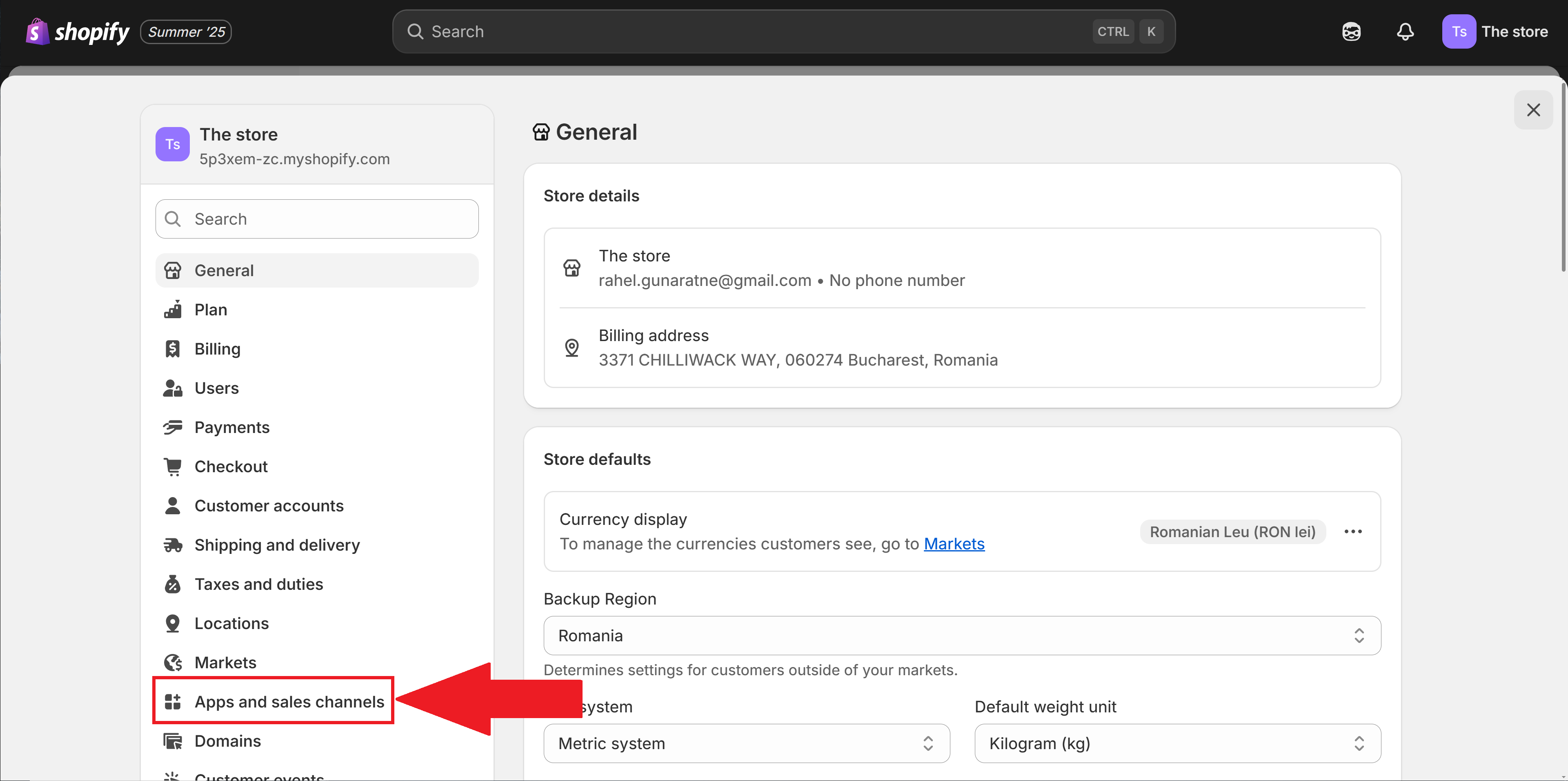
Step 2: Navigate to Apps and Sales Channels
In the Settings menu, find and click on Apps and sales channels.
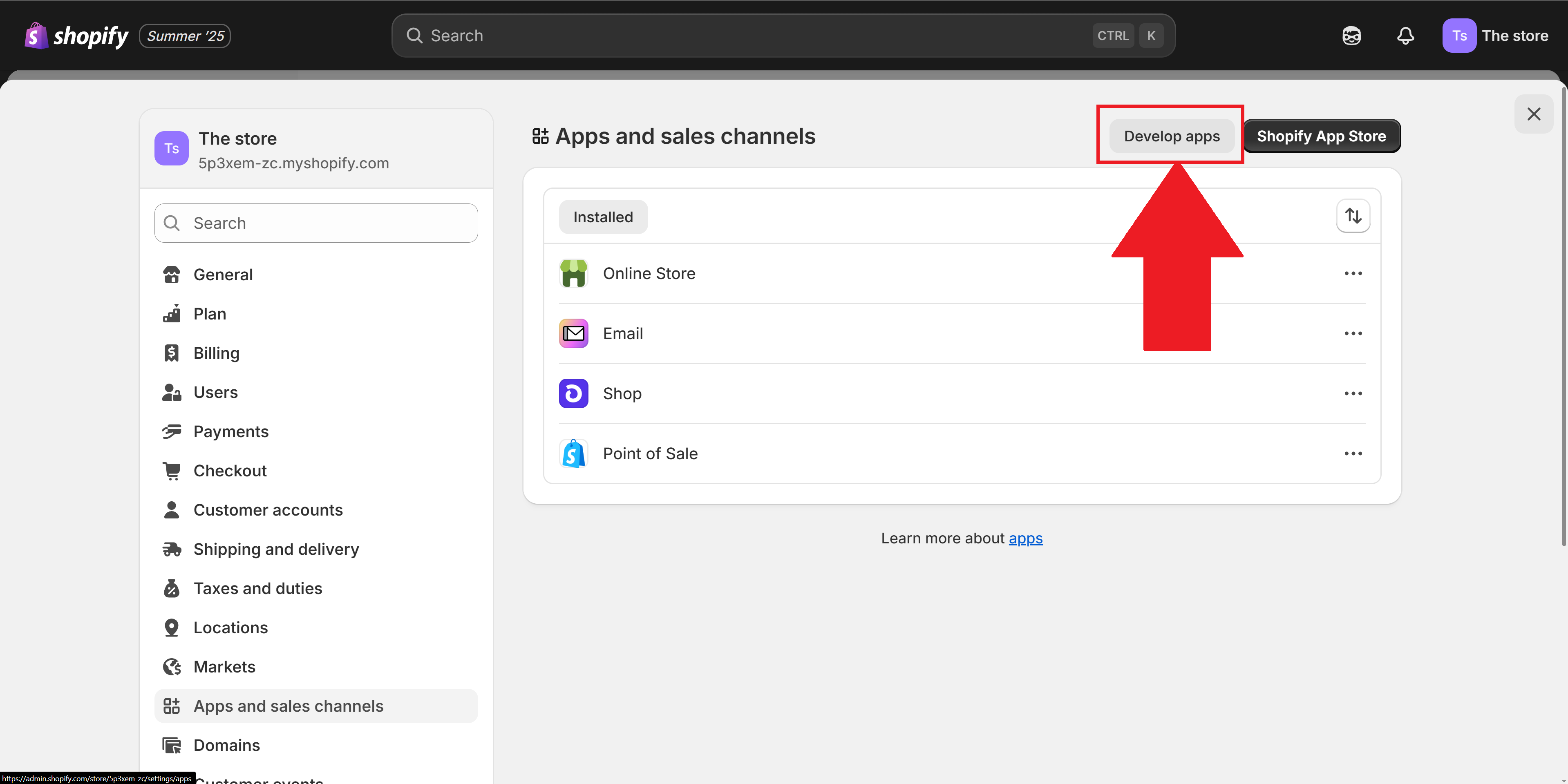
Step 3: Open Develop Apps
Click on Develop apps to access the custom app creation area.
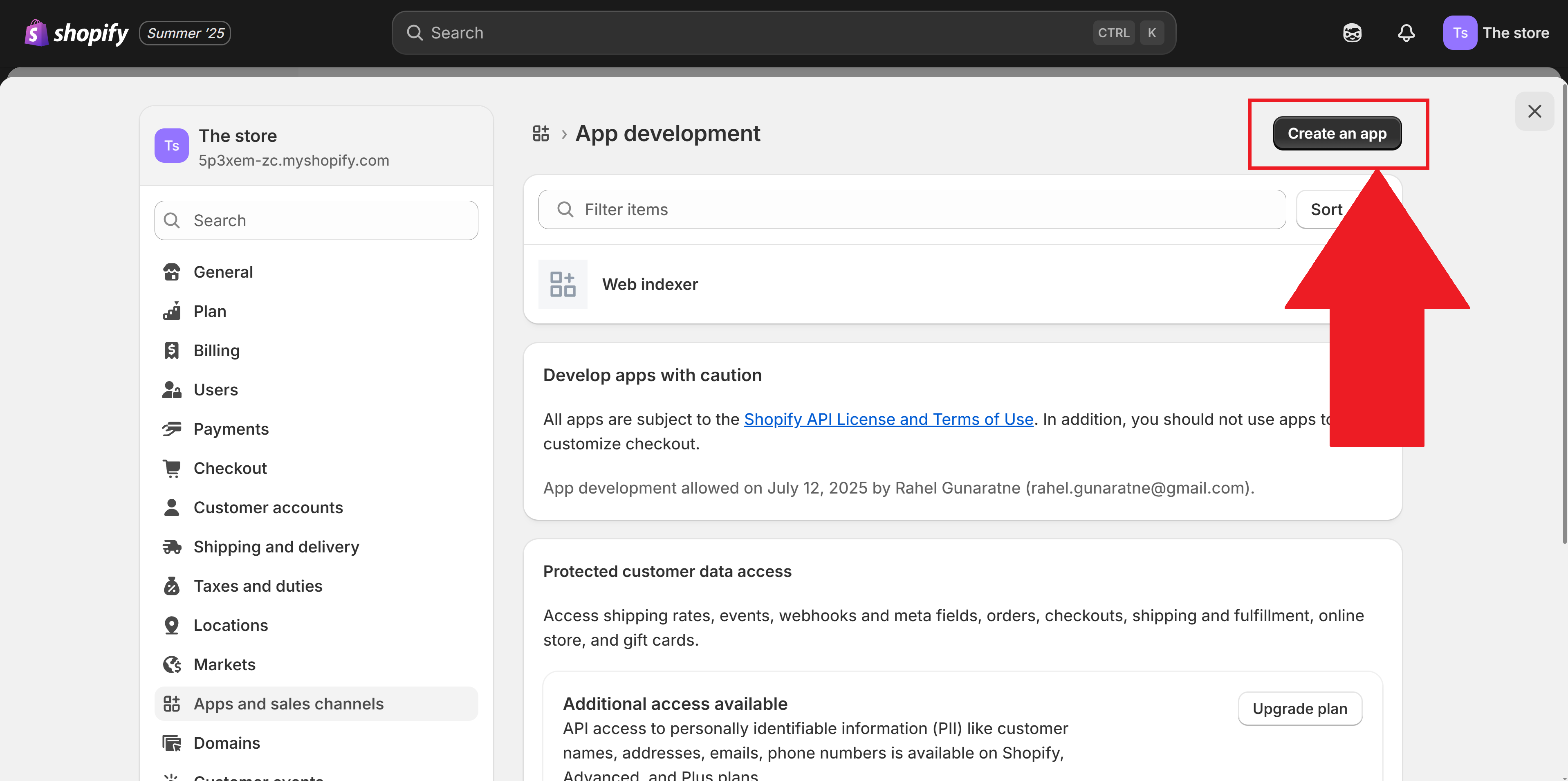
Step 4: Create a New App
Click the Create an app button to start setting up your Web Indexer integration.
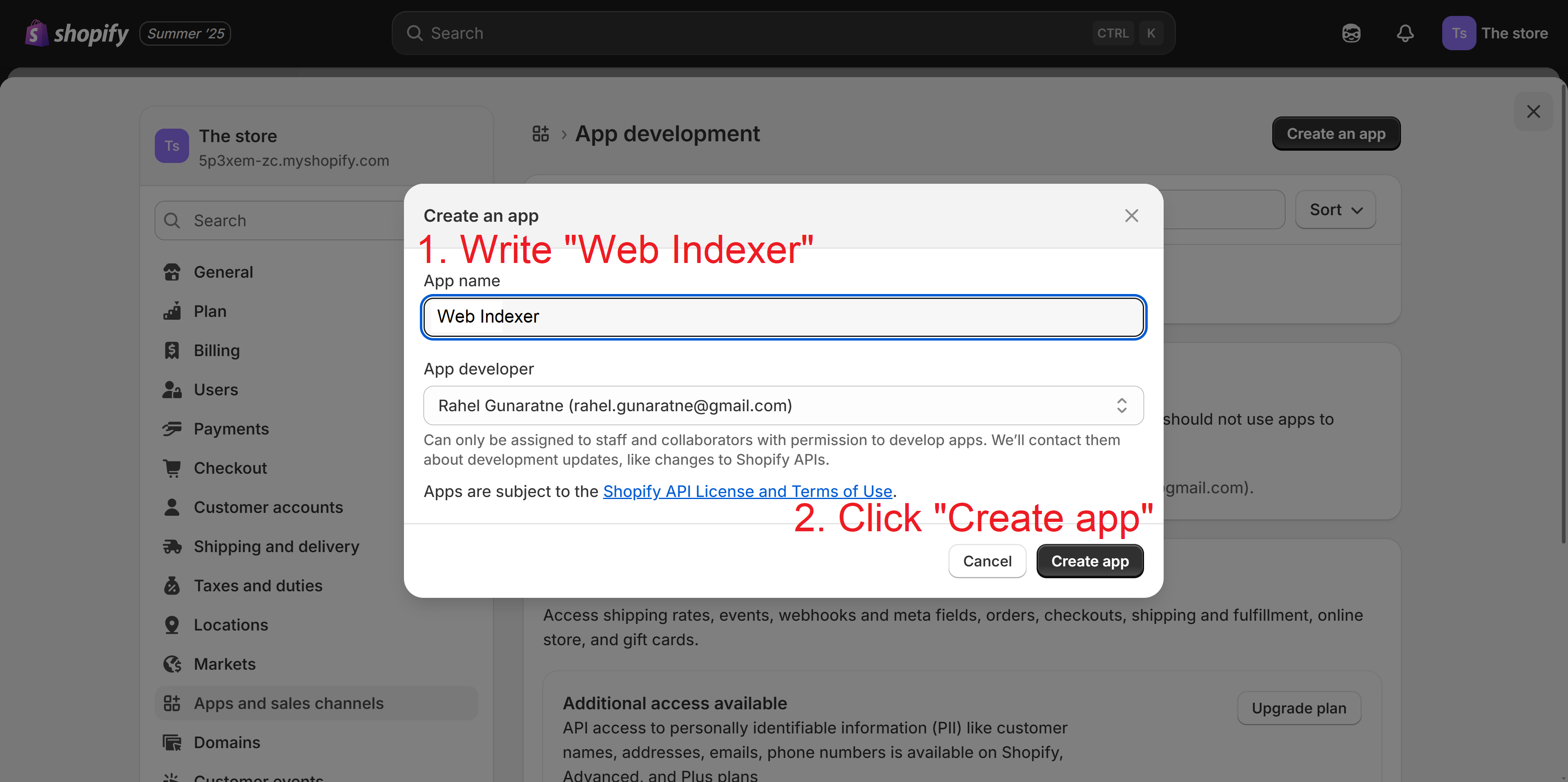
Step 5: Name Your App
Give your app a recognizable name like "Web Indexer Chatbot" or "AI Product Assistant". This helps you identify it later.
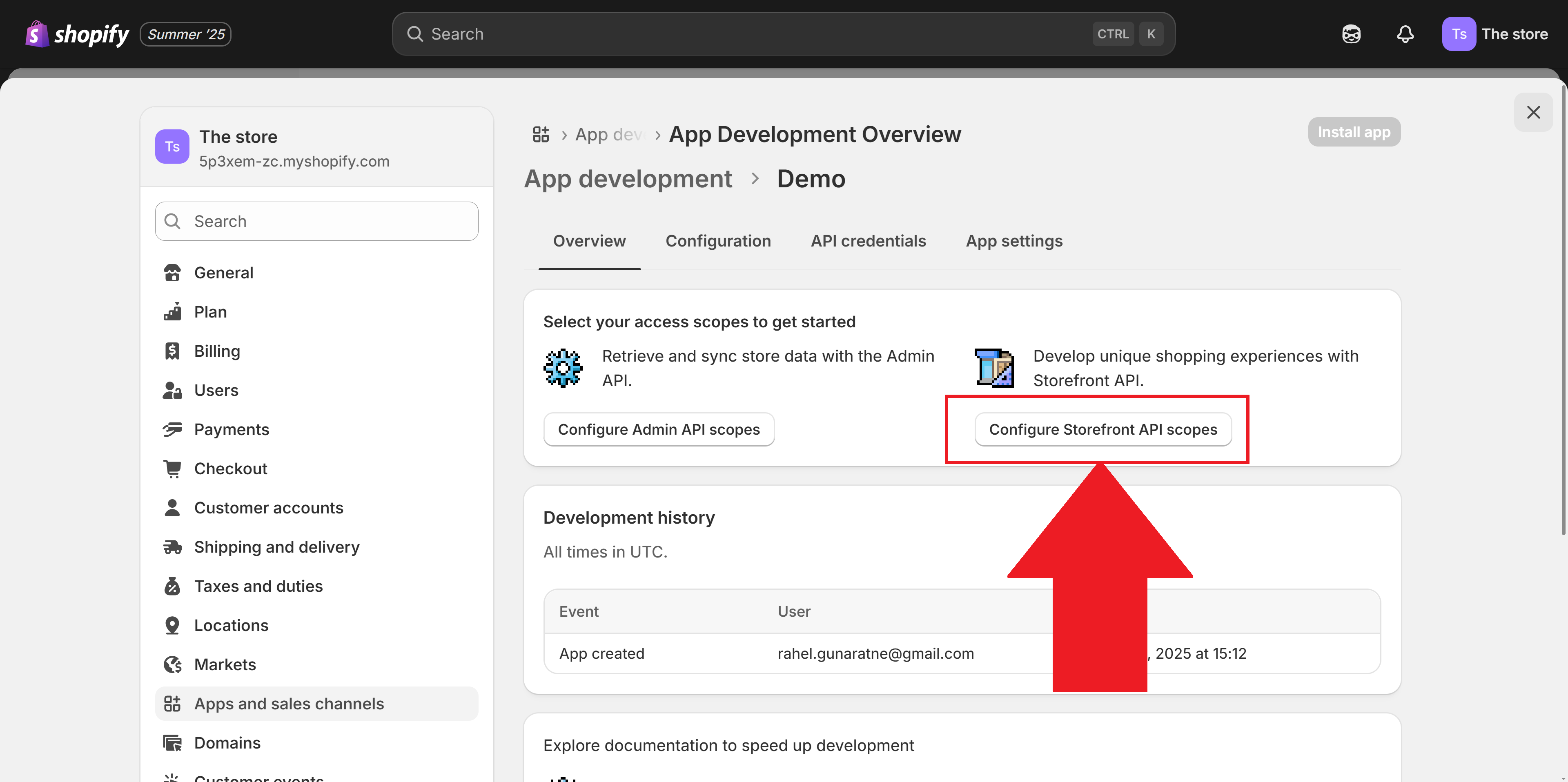
Step 6: Configure Storefront API Scopes
Click on Configure Storefront API scopes. This determines what information your chatbot can access.
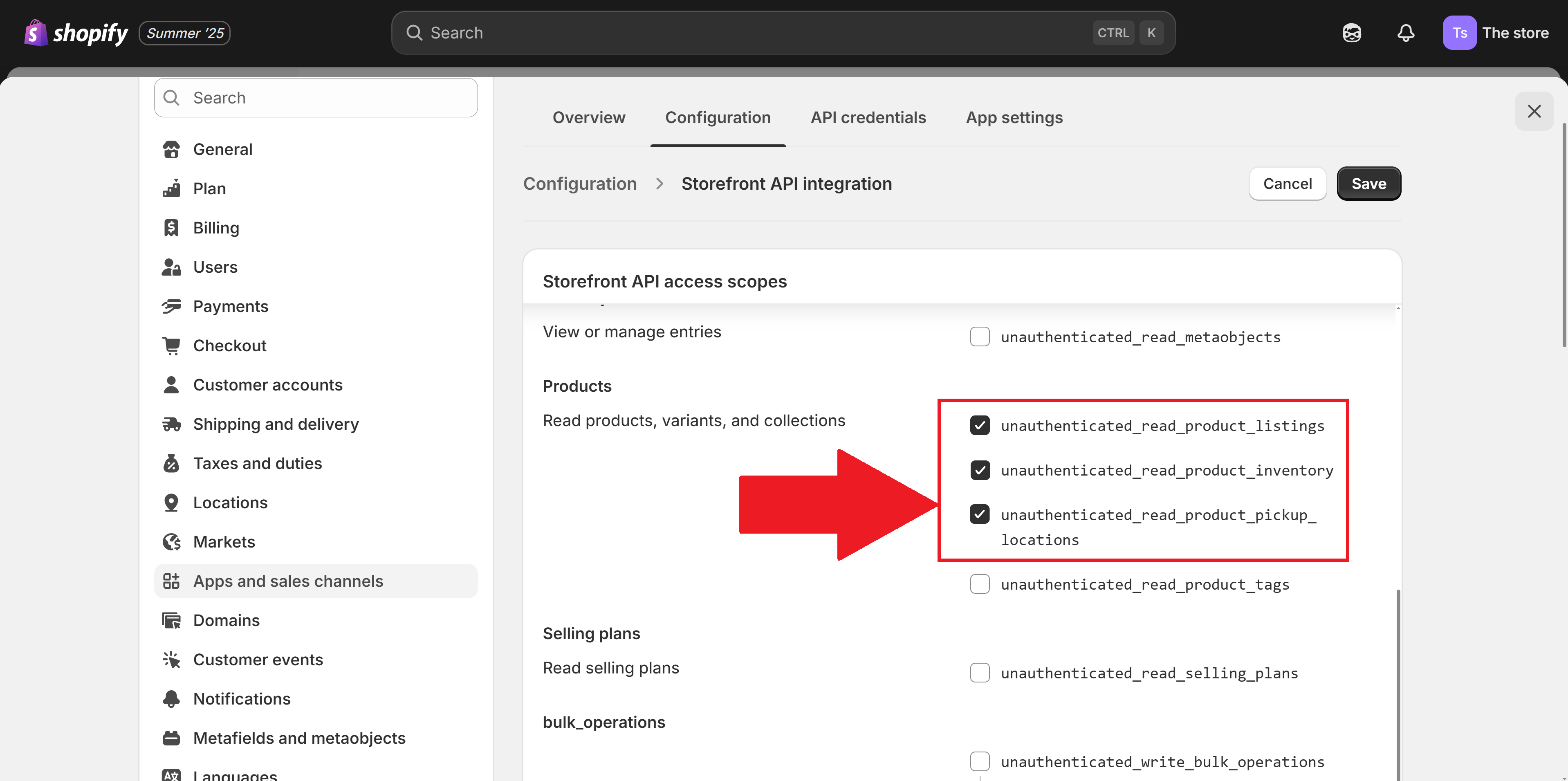
Step 7: Add Product Read Access
Enable the unauthenticated_read_product_listings scope. This allows your chatbot to read product information from your collections.
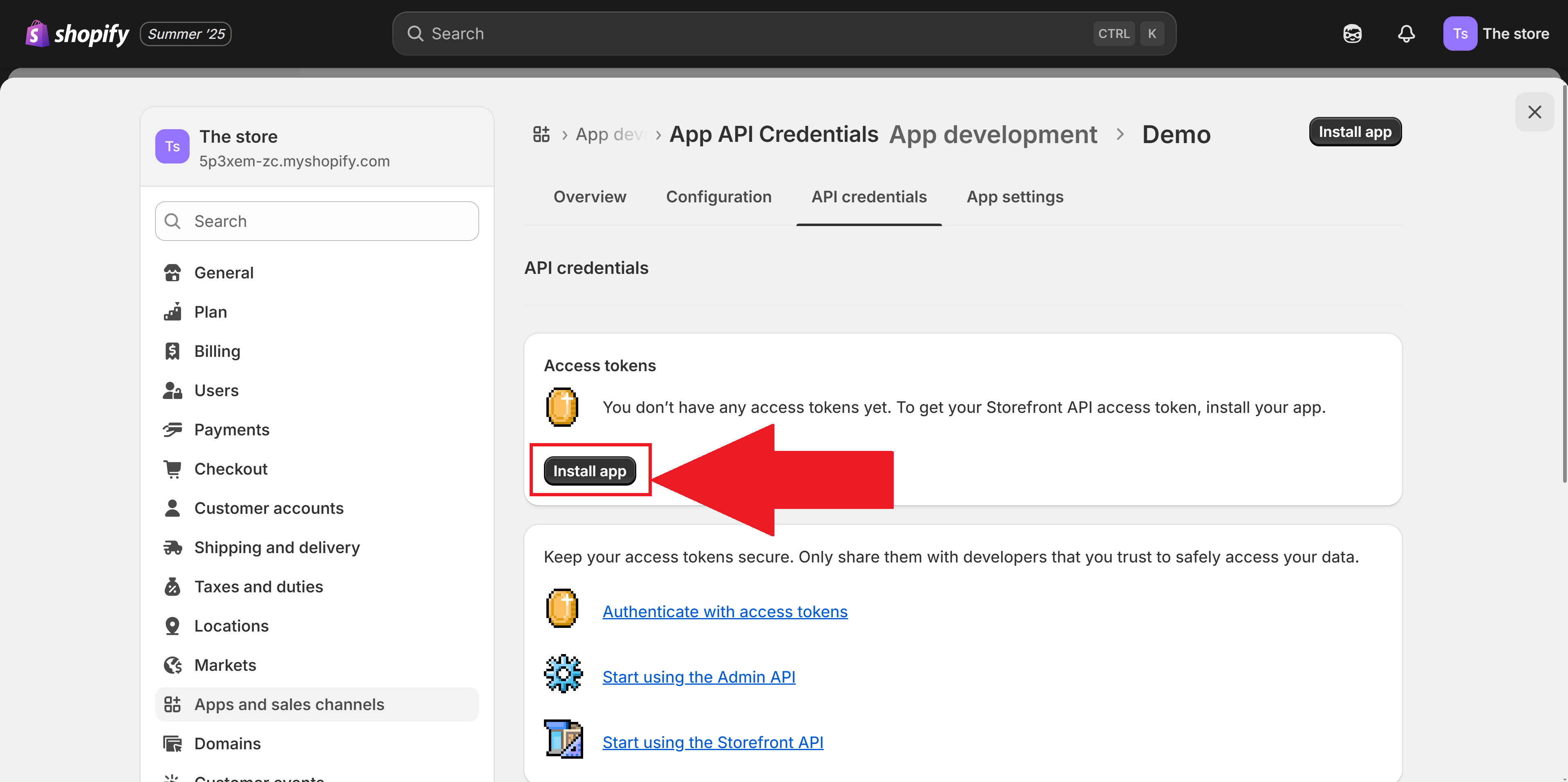
Step 8: Install the App
Click Install app to activate your custom integration. This will generate your access token.
Step 9: Copy Your Storefront API Access Token
You'll now see your Storefront API access token. Copy this token - you'll need it in the next step!
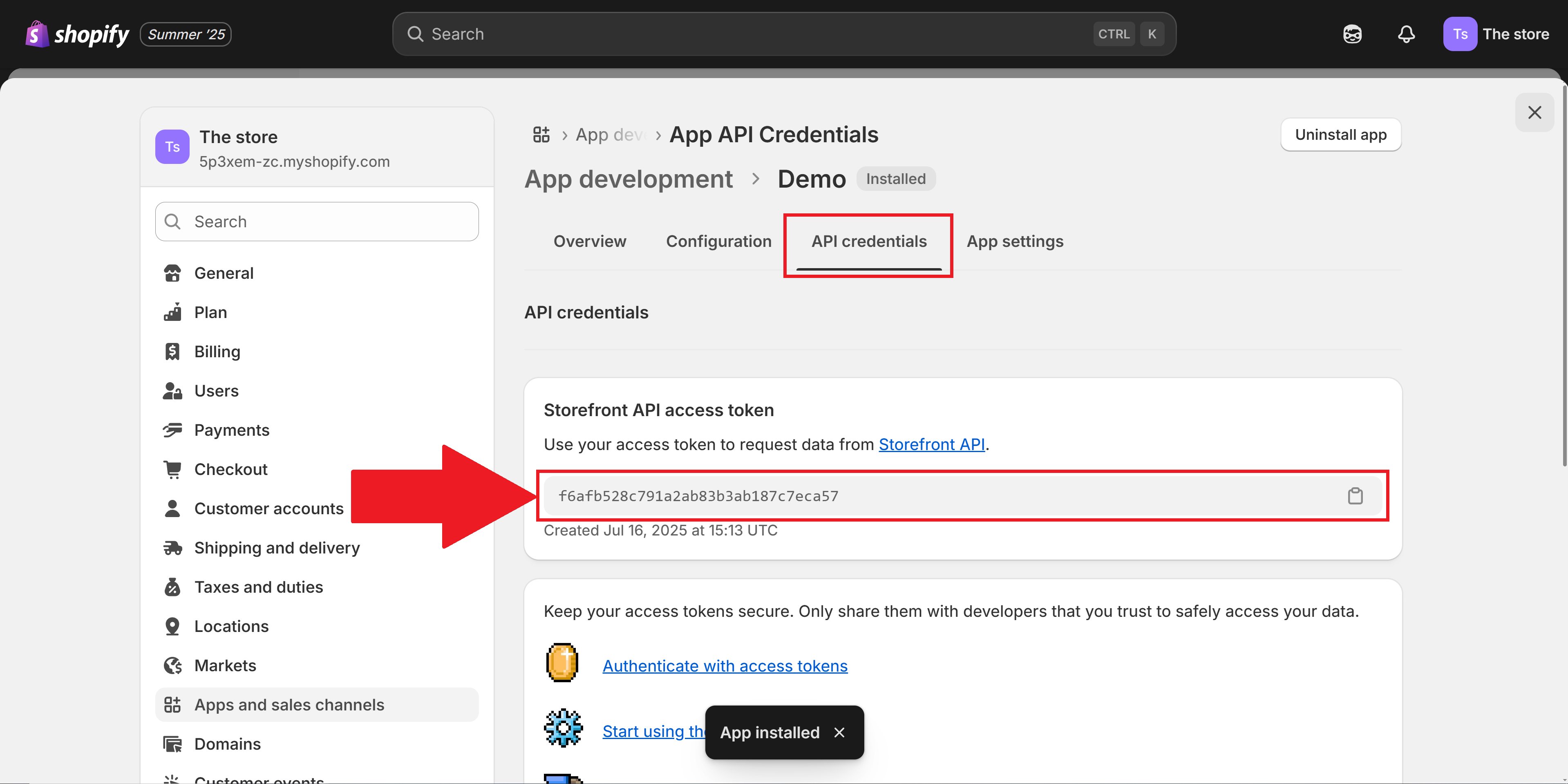
⚠️ Important: Keep this token secure! Treat it like a password. Don't share it publicly or commit it to version control.
✅Congratulations!
You've successfully created your Storefront API access token! Now let's connect it to Web Indexer.
Connect Your Shopify Store to Web Indexer
Now that you have your Storefront API access token, it's time to add your Shopify store as a knowledge source in your Web Indexer dashboard. This is where the magic happens - your chatbot will learn about all your products!
Adding Shopify to Your Knowledge Base
Log into your Web Indexer dashboard and navigate to your project
Go to the Data tab where your knowledge sources are managed
Click Add Shopify Store Data or look for the Shopify integration option
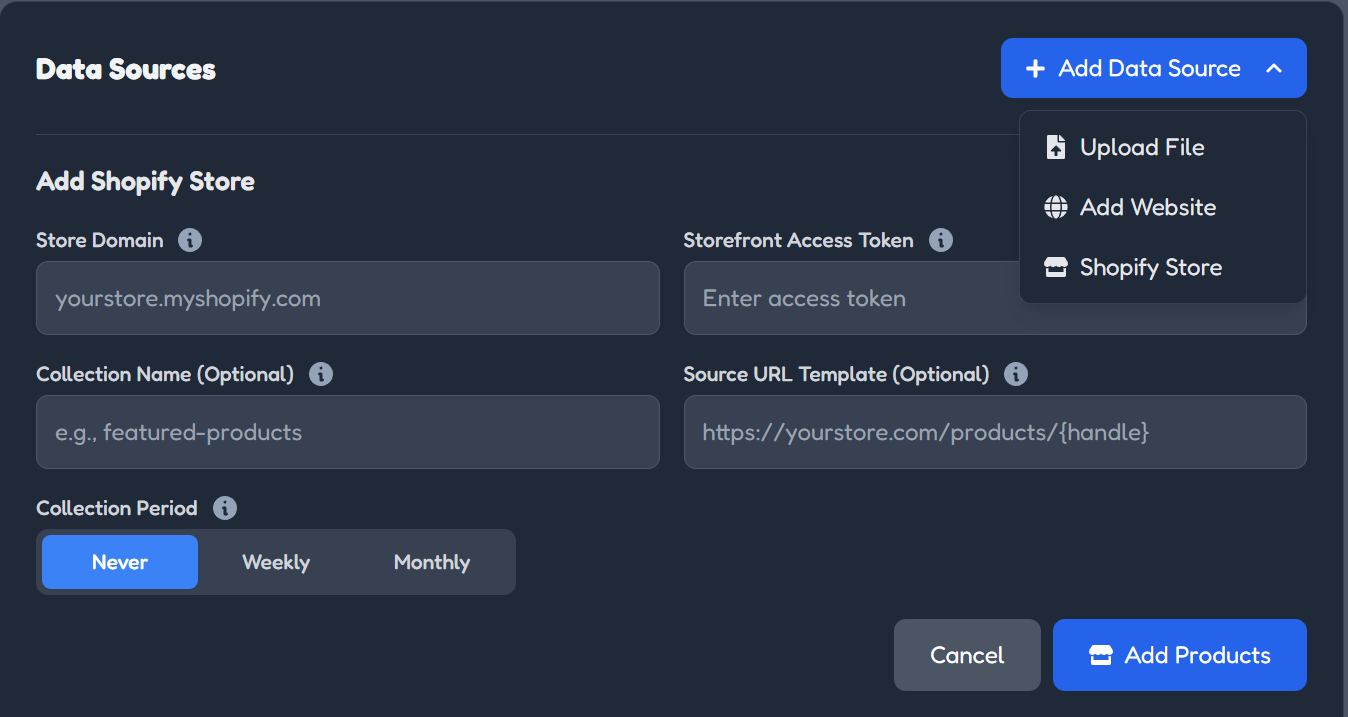
The Shopify integration interface in your Web Indexer dashboard
📋What You'll Need to Enter
Store Domain: Your Shopify store URL (e.g., yourstore.myshopify.com)
Storefront API Access Token: The token you just copied from Step 1
Collections to Include: After connecting, you'll see a list of your product collections. Select which ones you want your chatbot to know about (you can select all of them or be selective)
💡Pro Tips for Collection Selection
Start with bestsellers: If you have a large catalog, begin with your most popular collections to test performance
Seasonal updates: You can update collection selections anytime - add holiday collections during peak seasons
Source URL: The link will point to your collection page, but customers can click individual product links directly in the chat
What happens next? Web Indexer will automatically import all the products from your selected collections - titles, descriptions, prices, and images. This usually takes just a few seconds depending on your catalog size. You'll see a progress indicator, and once complete, your chatbot will be ready to recommend products!
Personalize Your Chatbot's Product Recommendations
Now that your chatbot knows about your products, it's time to teach it HOW to recommend them. This is where you transform your chatbot from generic AI into your brand's perfect sales assistant.
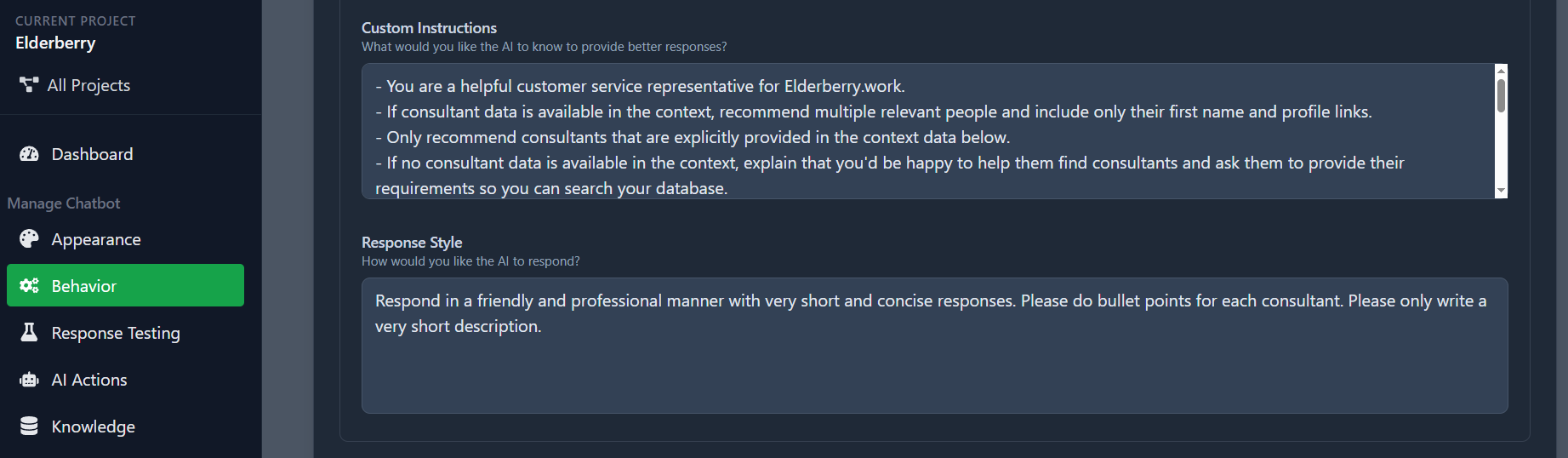
The Behavior tab where you customize your chatbot's personality
🎯Navigating to Response Style Settings
1. Go to the Behavior tab in your Web Indexer project dashboard
2. Find the Custom Instructions and Response Style section
3. This is where you'll define how your chatbot talks about and presents products
Custom Instructions for Product Recommendations
Add specific instructions to guide your chatbot's behavior when recommending products. Here are some powerful examples:
Essential Instruction:
"If a user asks about a product, provide the user with a link to the product and say 'Check it out here!' or 'View this product here.'"
Sales-Focused:
"When recommending products, always mention key features and current promotions. End every product recommendation with an encouraging call to action."
Personalization:
"Ask clarifying questions to better understand customer needs before recommending products. Consider their budget, preferences, and use case."
Multi-Product Recommendations:
"When appropriate, suggest 2-3 related products or complementary items that work well together."
❌Without Custom Instructions
User: Do you have winter jackets?
Bot: Yes, we have winter jackets available in our catalog.
✅With Custom Instructions
User: Do you have winter jackets?
Bot: Absolutely! We have several great winter jackets. Our bestseller is the Arctic Pro Insulated Jacket - waterproof, windproof, and rated for -20°C. Check it out here! [Link] 🧥
⭐Advanced Response Style Tips
Match your brand voice: If your brand is playful, use emojis and casual language. If you're luxury, keep it elegant and refined.
Highlight unique value: Mention free shipping, warranties, or special offers in your instructions.
Address objections: Train your bot to proactively answer common concerns like sizing, returns, or shipping times.
Cross-sell smartly: Include instructions for suggesting complementary products (e.g., "If someone buys a camera, suggest memory cards and cases").
Test and iterate: After setting your custom instructions, test your chatbot with various product questions. You can always refine the instructions based on how it performs!
Monitor Conversations and Optimize Performance
Your Shopify chatbot is now live and helping customers! But the journey doesn't end here. The Insights tab is your command center for understanding how customers interact with your chatbot and continuously improving their experience.
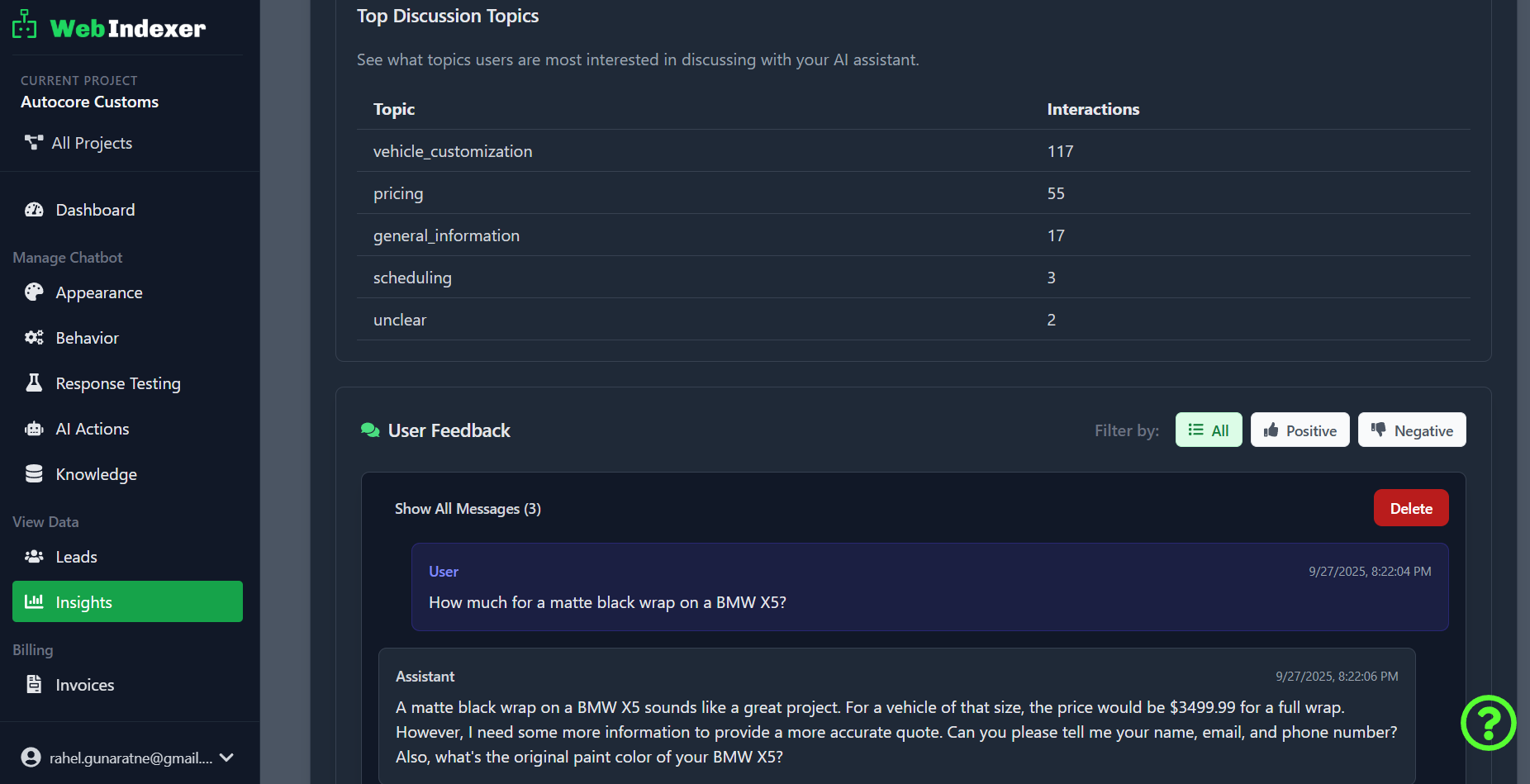
The Insights tab - see every conversation in real-time
🔍What to Look For in Your Conversations
Popular Products: Which products are customers asking about most?
Common Questions: Recurring questions reveal gaps in product descriptions
Unsuccessful Searches: Products customers want but can't find
Customer Language: How do people actually describe products?
Purchase Intent: Track conversations that lead to sales
Support Issues: Common concerns about shipping, returns, sizing
📧Automatic Email Insights Reports
Don't want to check the dashboard constantly? No problem! Web Indexer sends you comprehensive insights reports directly to your email. You can set the frequency in the Insights tab.
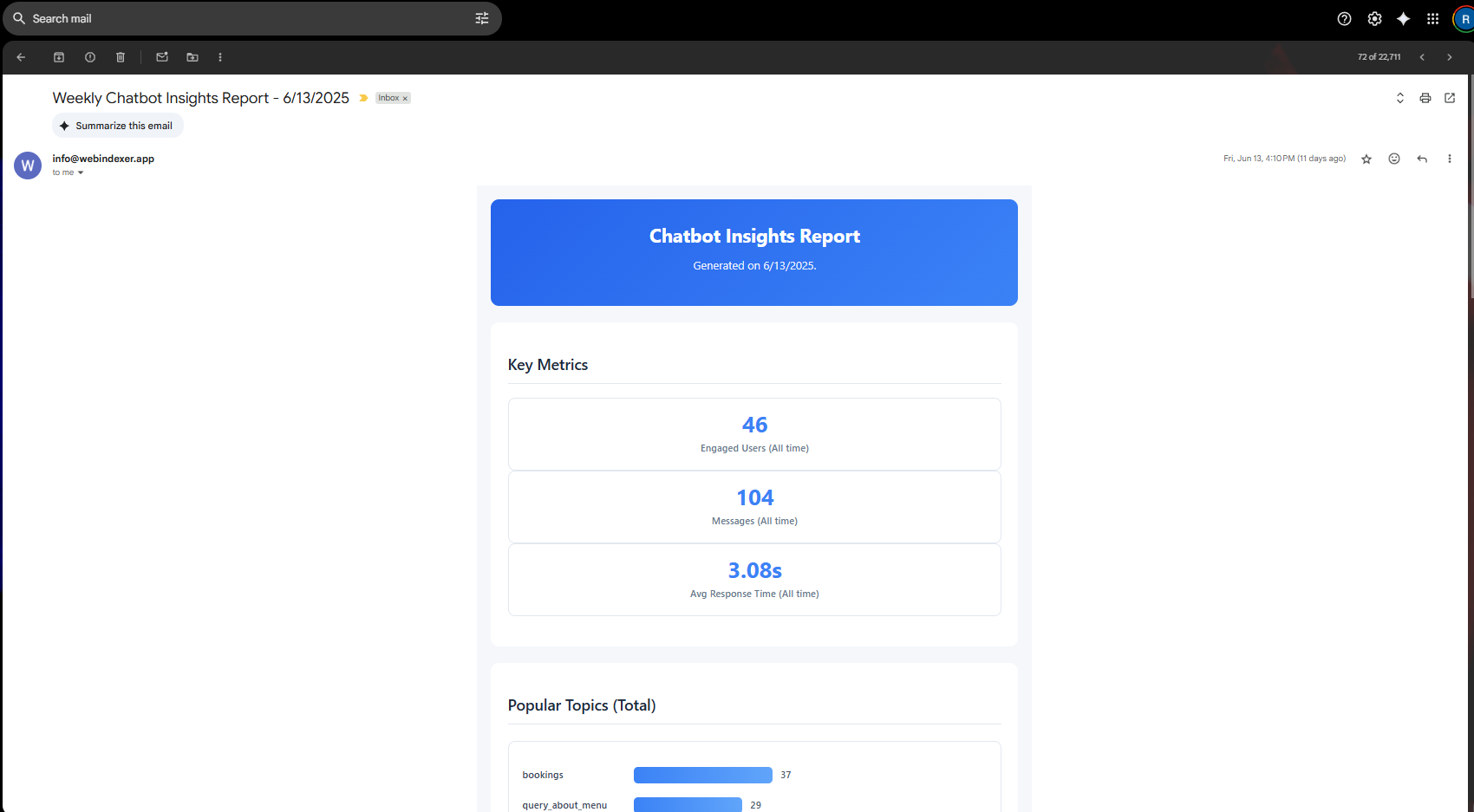
Sample insights report delivered to your inbox
Using Insights to Optimize Your Store
Product Descriptions: If customers keep asking about features that ARE listed, make those details more prominent
Inventory Decisions: High interest in certain products? Consider stocking more or featuring them prominently
Chatbot Refinement: Update your custom instructions based on recurring questions or confusion patterns
Marketing Insights: Discover which product benefits resonate most with customers
Real success story: One Shopify store owner discovered that 60% of chatbot conversations were about sizing. They added a detailed sizing guide to their custom instructions and saw a 40% decrease in returns. That's the power of insights-driven optimization!
What to Expect: Real Results from Shopify Chatbots
Troubleshooting & Common Questions
❓ My chatbot isn't showing products
Double-check that: (1) Your Storefront API token is correct, (2) You've selected at least one collection to import, (3) The products have been successfully imported (check the Data tab for import status).
❓ Can I update my product catalog?
Yes! Your chatbot can automatically sync with Shopify to get the latest products. You can also manually refresh the data source in the Data tab whenever you add new collections or products.
❓ Will this work with Shopify's sales channels?
Yes! The Storefront API pulls from your main product catalog, so products available across your sales channels will be accessible to your chatbot.
❓ How often should I review insights?
For the first month, check weekly to identify patterns and optimize your chatbot. After that, monthly reviews are usually sufficient unless you're running special promotions or launching new products.
Need Help Setting Up Your Shopify Integration?
We're here to help! Whether you're stuck on a technical step or want personalized advice for your store, our team is ready to assist.
📧 Email us at info@webindexer.app - we typically respond within a few hours!
Ready to Transform Your Shopify Store?
Your AI-powered product recommendation engine is just a few clicks away. Start connecting customers with the perfect products 24/7.
Set Up Your Shopify Chatbot Now